

Three ways to change it
Tell Chattree
Send Chattree setup and a sentence: setup remind everyone of Sunday service every Saturday at
6pm. It shows you the change and saves it when you reply yes.
Start from a template
In the group’s editor, press Templates at the bottom right and pick the one for the kind of
group it is — or describe what should change.
Use the editor
Open the group on the dashboard and change it block by block: a
condition, a wait, or an “ask me first” anywhere.
The editor
Open a group on the dashboard and its editor fills the screen.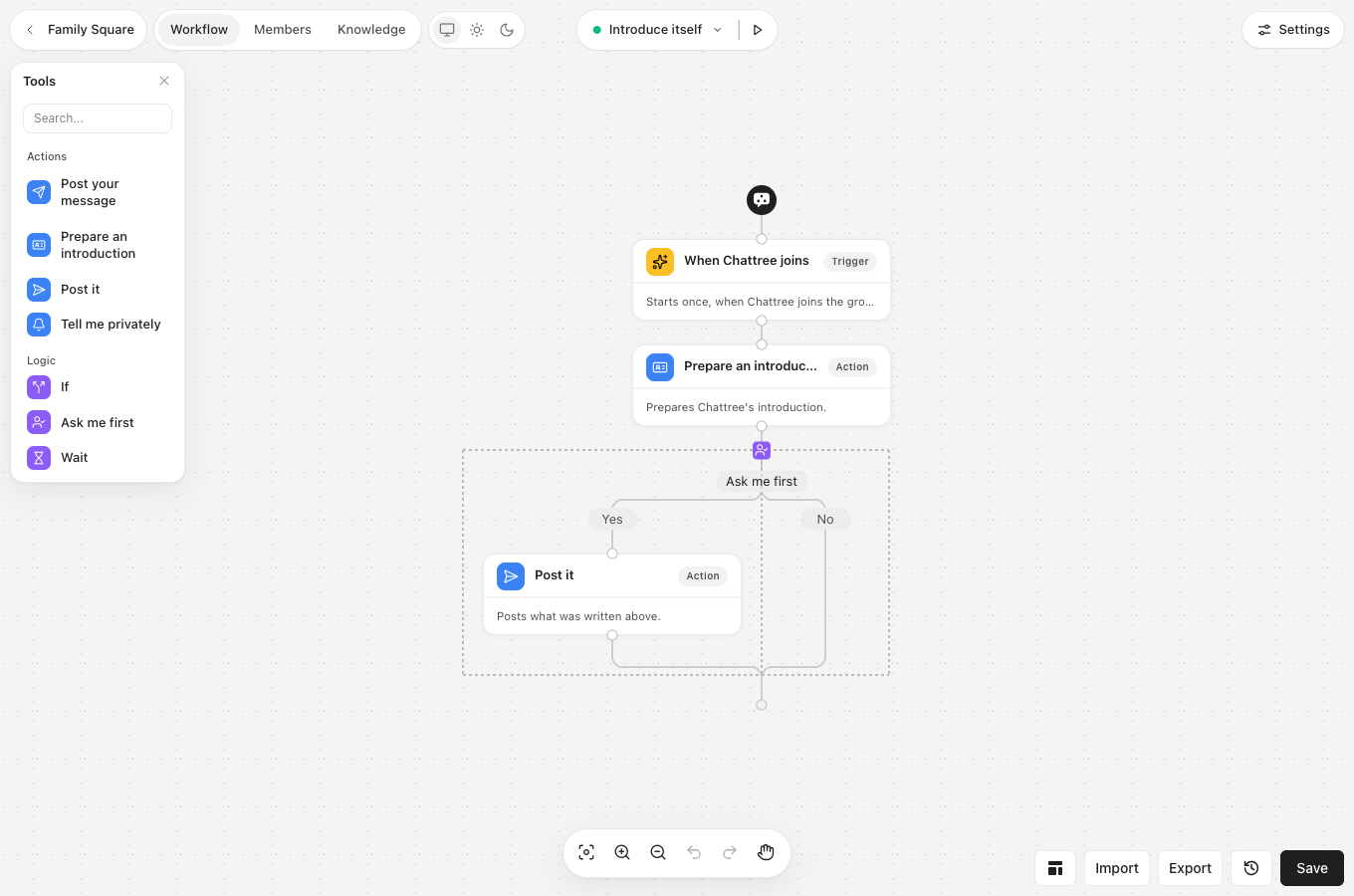
- Across the top, from the left: back to all your groups, the group’s Workflow, Members and Knowledge tabs, and light or dark. In the middle, the flow on the canvas. On the right, Waiting for you (when something is) and Settings.
- One flow at a time. The canvas shows one flow: the card that starts it, then its steps. Its name at the top opens the list of flows in the group, each with a green dot when it is on. From there you can rename the flow, turn it off (it stays, for later) or on, delete it, or start a + New flow by choosing what starts it. New flow offers only what the group does not have a flow for yet — except a schedule and a phrase, which a group can have several of.
- ▶ beside the name reads the flow back in words, the way setup does in WhatsApp.
- Click a step to change it. Its settings open beside it. The toolbox on the left offers only the steps that fit the flow you are looking at.
- Settings holds the group’s own settings: the assistant’s name, what the group is for, what to say when it cannot answer, which language to reply in, quiet hours, the group’s time zone, the voice, and whether Chattree is active in the group.
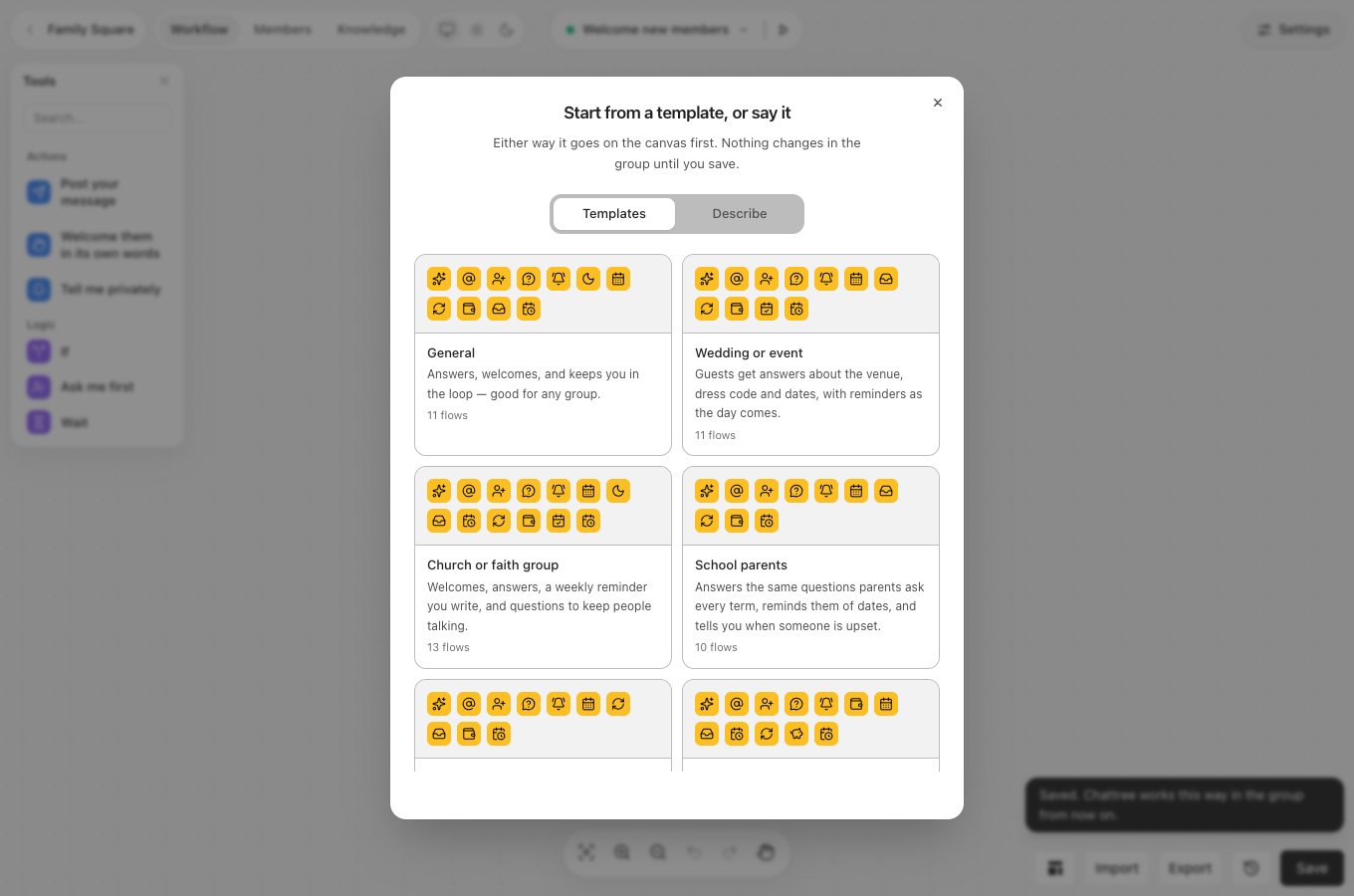
- Templates opens Start from a template, or say it, with two tabs. Templates shows the whole library, each with its flows; pick one. Describe takes a sentence — remind everyone of the monthly meeting on the first Saturday at 10am — shows you What changes, and puts it on the canvas when you say so. Either way nothing changes in the group until you save.
- Import and Export move a whole workflow as a file: export one group’s, import it into another. An imported workflow is checked first, and brings its flows only — the group keeps its own language and quiet hours.
- History lists every saved version (see Undo).
- Save makes it the group’s workflow. Beside it, Unsaved changes shows while there is something to save — or 1 thing to fix if something would break a limit; click it to see what. A workflow that breaks a limit is never saved.
The blocks
A flow starts with when…, then its steps: things Chattree does, and logic that decides whether and when it does them. Not every step fits every start — Chattree never answers a question nobody asked, and never posts in the group because someone left — so the editor offers only the steps that fit. This is the whole list:
Any flow can also use If, Wait and Ask me first between its steps.
Post your message posts your words exactly as you wrote them. Tell me privately messages
you, never the group. If checks who sent it, whether they are on your members list, words it
mentions, or the time of day. Wait holds for a while. Ask me first sends you the draft and
carries on only when you reply approve (or skip).
A few that are worth knowing
- Members leave tells you who left or was removed, all together, a few minutes after the first — twenty people removed at once is one message. Nothing is said in the group, and nobody who left is contacted.
- A date has passed runs the day after a date on your list (or a few days after), at 10:00 in
the group’s time. In your message,
{event}becomes the date’s name: Thank you all for ! - Someone says a phrase listens for your words or phrases — prayer request, lost and found, #urgent — as whole words, in any case. It can reply to that message in your words and tell you who said it. It is checked with Chattree’s regular look at the group, every ten minutes.
- Send me a report goes under a day and time you choose: messages and how many people spoke, who joined and left, what Chattree did, and what is waiting for you — numbers only, never names or messages. Every template has a Weekly report to me flow, off until you switch it on. You can also send setup with send me a weekly report, or tell me when people leave.
- A flow that is off does nothing and is kept. Templates ship some flows off: the ones that post a message need your words first, and the rest are there to switch on when you want them.
What no workflow can change
Chattree shares its WhatsApp numbers with other groups, and a number that posts too much gets banned — for everyone on it. So some things hold whatever a workflow says:- A group hears at most three scheduled messages, one roundup and two discussion questions a week, and nothing unprompted during its quiet hours. Replies to your phrases are at most two a day in a group, and one per person in six hours. A workflow that would go over is refused when you save it, with the reason.
- Chattree only ever messages you privately, and members only in the group — never a member on their own.
- It never removes anyone, and it never answers a question it was not taught the answer to.